URL Redirects
Redirects let you send visitors from a specific URL to another subpage. If you're moving an existing website to keinaufwand, redirects for subpages that no longer exist help you improve your SEO and make sure visitors end up on the right page.
Redirects can also be used within keinaufwand. If you change the URL of a blog post or an offer page, redirects make sure your visitors still reach the relevant content. For example, if you archive an offer, you can set up a redirect that sends visitors of the old URL to a similar offer.
In this article
Add a Redirect
To create a redirect, follow these steps:
- In the admin panel, go to Websites > Websites.
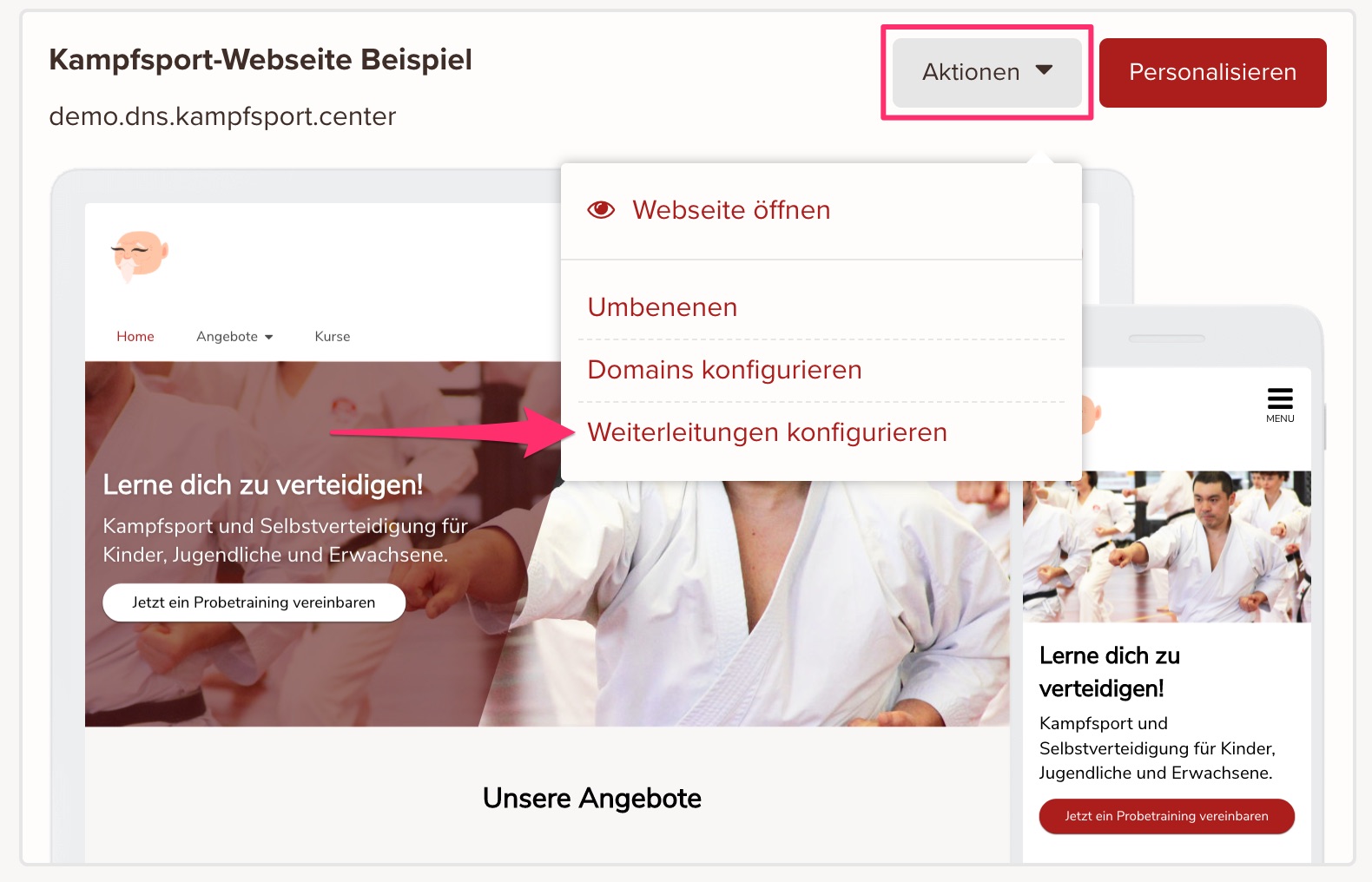
- Next to your website, click the Actions button and then the Configure redirects link:
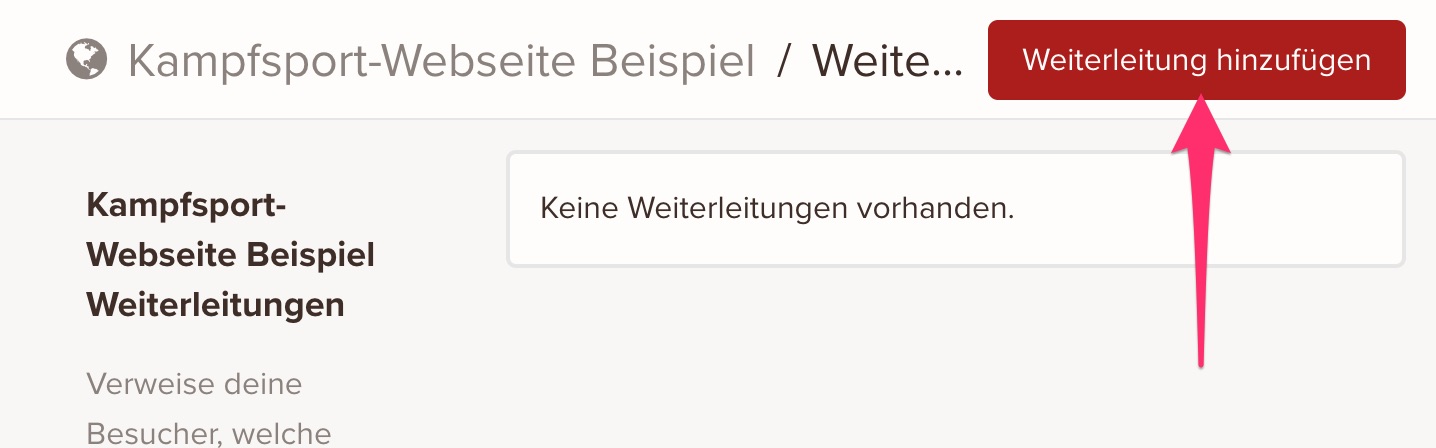
- Click the Add redirect button
- Enter the path and choose the target page your visitors should be redirected to when they open the path
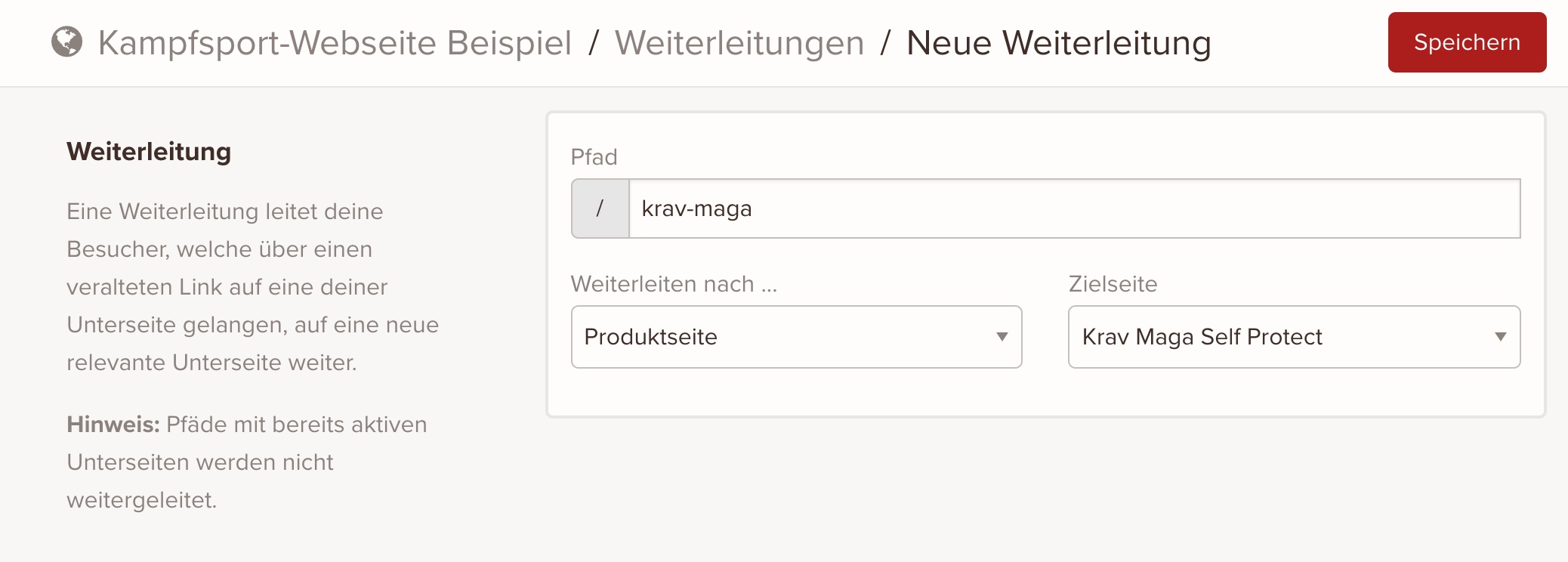
- Click Save once you're happy with the information you've entered
In the example above, visitors who open the path /krav-maga are now redirected to /angebote/krav-maga-self-protect.
Edit a Redirect
- In the admin panel, go to Websites > Websites.
- Next to the website, click the Actions button and then the Configure redirects link:
- Select the redirect you want to edit.
- Adjust the path or the target.
- Click Save.
Delete a Redirect
- In the admin panel, go to Websites > Websites.
- Next to your website, click the Actions button and then the Configure redirects link:
- In the redirect's edit view, click Delete redirect in the bottom left.
- Confirm the action in the confirmation dialog to delete the redirect.
keinaufwand for: Martial arts schools, Consulting and coaching, Yoga and Pilates, Dance schools, Gyms and fitness studios, Personal training, Swim schools, Music schools, Sports clubs, Massage and therapy practices, Dog training schools.
Enjoy the rest of your Wednesday!