Event Listings
An event listing is the second component of an event and contains information about the location and date of the course or event.
To create an event listing, you first need to create an event.
In this article
- Registration forms
- Payment methods
- Add an event listing
- Edit an event listing
- Close or open registrations for an event listing
Registration forms
keinaufwand supports three different ways to register:
Online form
Our online event registration form lets you receive registrations directly in your keinaufwand account. Every event listing gets a linkable URL that you can link to from your own website or from platforms like Facebook. For accounts with a keinaufwand website, the registration forms are linked automatically.
PDF form (keinaufwand websites only)
Alternatively, you can add a PDF form to an event listing, which visitors to a keinaufwand website can download.
External form (keinaufwand websites only)
The third option is to link to an external registration form. Visitors to a keinaufwand website are then redirected to the URL you specify.
Payment methods
We currently support the following payment methods:
- Pay on site As the name suggests, this requires the amount owed to be paid manually on site.
- Credit card You can set up credit card payments by connecting a Stripe account.
In the near future, we'll support additional payment methods such as SEPA Direct Debit.
Add an event listing
To add an event listing:
- From the admin panel, go to Offers > Event Listings.
- Click Add event listing.
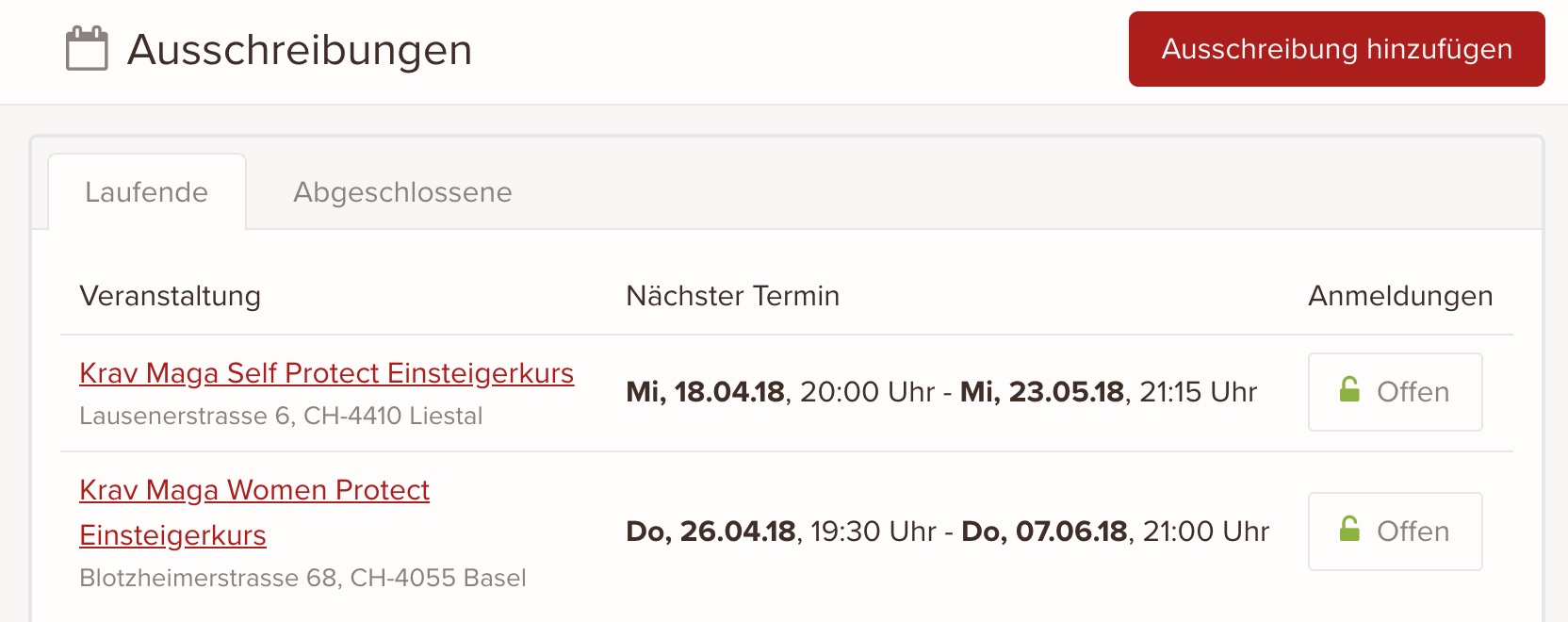
- On the New event listing page, select the event you want to list.
- Set the price for the event listing. Set the amount to 0 if the event listing is free.
- Select where the event takes place by selecting or entering an address.
- Add the start and end dates of the event. Optional: Add multiple dates if the event takes place irregularly over a longer period.
- Optional: Add a PDF or external registration form to the event listing. By default, our online event registration form is used.
- By default, event listings use the start date as the registration deadline. Click use custom registration deadline in the Registration deadline section and select the date you want as the registration deadline.
- Click Save once you're happy with your settings.
Edit an event listing
To edit an event listing:
- From the admin panel, go to Offers > Event Listings.
- Click the event listing.
- Click Edit in the top right.
- Adjust the settings you want.
- Click Save.
Close or open registrations for an event listing
If an event listing has a registration form, visitors can download it before the registration deadline. After the registration deadline, the registration form is hidden automatically. If the event listing is fully booked before the registration deadline, you can also hide the registration form manually by closing registrations.
To close or open registrations:
- From the admin panel, go to Offers > Event Listings.
- Click the event listing.
- In the Registration status section, click Close registrations or Open registrations.
keinaufwand for: Martial arts schools, Consulting and coaching, Yoga and Pilates, Dance schools, Gyms and fitness studios, Personal training, Swim schools, Music schools, Sports clubs, Massage and therapy practices, Dog training schools.
Enjoy the rest of your Wednesday!