Blog Posts
Every keinaufwand account with the Websites module includes a modern blog system. Running a blog is a great way to build an audience and, as a result, generate more website visitors and appointment bookings.
Blog posts help you generate more website visitors in several ways:
- By improving your search engine rankings (SEO)
- By letting you tell stories that turn visitors into first appointments and, ultimately, customers
- By helping you increase interactions between you and your customers
In this article
Add a Blog Post
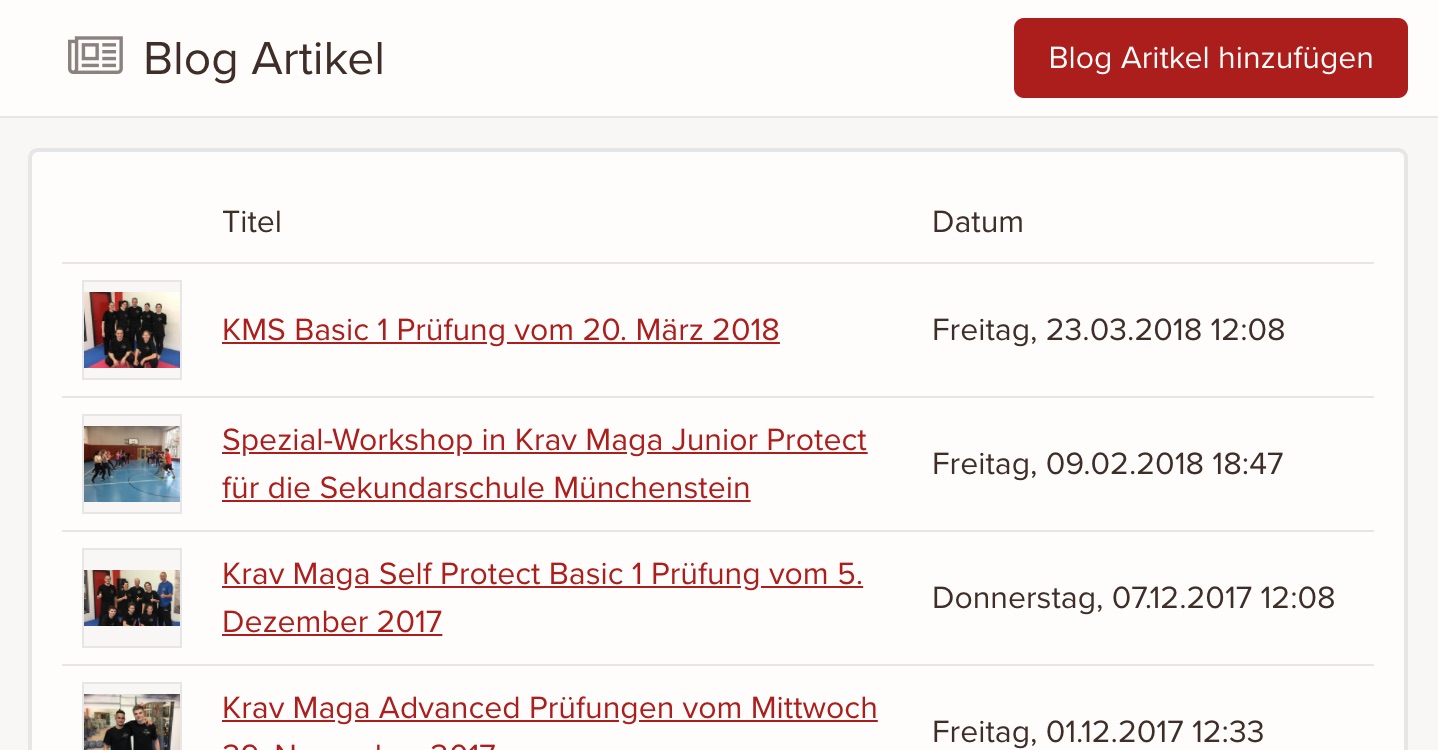
- In the admin panel, go to Websites > Blog Posts.
- Click Add blog post.
- On the New blog post page, add a title.
- Add the content of the blog post. This field uses the rich text editor, so you can format the content of the blog post.
- Optional: Add a cover image to the blog post. Click Upload image in the Cover image section and choose the image you want to upload.
- Blog posts are hidden by default and don't appear on your website. When you're ready to publish the blog post, click Visible in the Visibility section or choose a specific publish date for the post. You can edit or delete a published blog post at any time.
- Click Save once you're happy with the content and settings you've entered.
Edit a Blog Post
If you want to change an existing blog post (for example, the content, the publish date, or other details), follow these steps:
- In the admin panel, go to Websites > Blog Posts.
- Click the title of the blog post you want to edit.
- Adjust the content and settings as needed.
- Click Save.
Hide a Blog Post
To hide a blog post:
- In the admin panel, go to Websites > Blog Posts.
- Click the title of the blog post you want to edit.
- In the Visibility section, click Hidden.
- Click Save.
Delete a Blog Post
To delete a blog post:
- In the admin panel, go to Websites > Blog Posts.
- Click the title of the blog post you want to delete.
- In the blog post's edit view, click Delete blog post in the bottom left.
- Confirm the action in the confirmation dialog to delete the blog post.
Long titles are shortened to two lines in the overview. You'll see the full title when you edit the post.
keinaufwand for: Martial arts schools, Consulting and coaching, Yoga and Pilates, Dance schools, Gyms and fitness studios, Personal training, Swim schools, Music schools, Sports clubs, Massage and therapy practices, Dog training schools.
Enjoy the rest of your Wednesday!