Appointment Calendar
You can subscribe to all the appointment bookings you receive with any iCal-compatible calendar software.
The calendar shows all accepted and upcoming appointment bookings and groups those with identical offers. Bookings older than 1 month aren't synced.
In this article
Basic Steps
To subscribe to a calendar:
- In the admin panel, click Settings and then Calendar in the submenu
- Click the Subscribe to calendar link. Your default calendar software should now open, and you can confirm adding the calendar.
- If your calendar software doesn't open when you click Subscribe to calendar, right-click the Subscribe to calendar link and choose Copy link/URL from the context menu
- Switch to your calendar software and choose New calendar subscription or Add/find calendar via URL/internet. The name of this option may vary depending on the program.
- Paste the link you copied earlier into the required field and confirm your entry
Subscribe with Google Calendar
To subscribe to a calendar with Google Calendar:
- Open your Google Calendar
- Click the arrow next to Other calendars and choose From URL
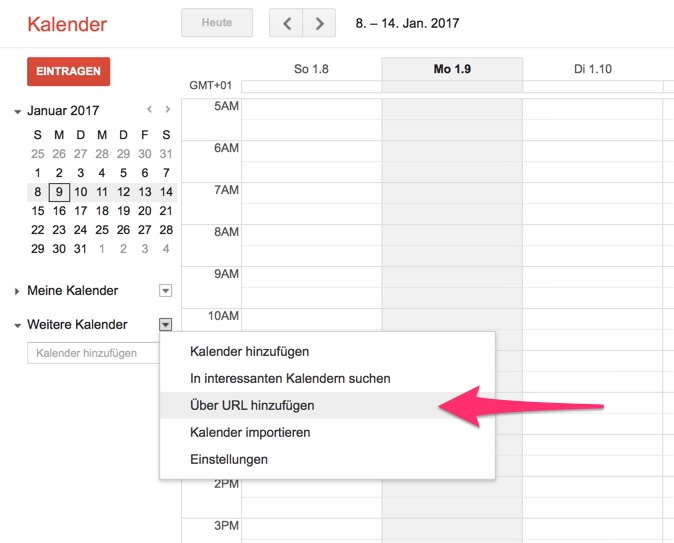
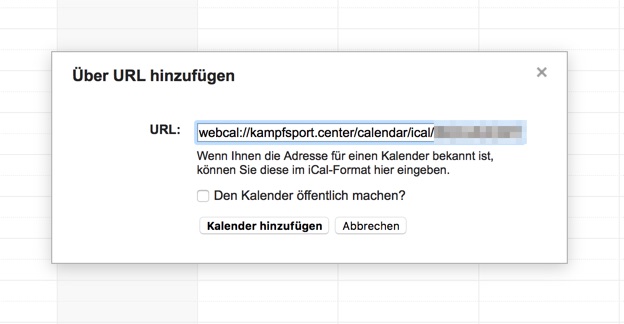
- A window opens where you need to enter the calendar's URL.
In the location or staff overview, right-click the Subscribe to calendar link and choose Copy link/URL from the context menu.
Now paste the copied link into the URL field and click the Add calendar button.
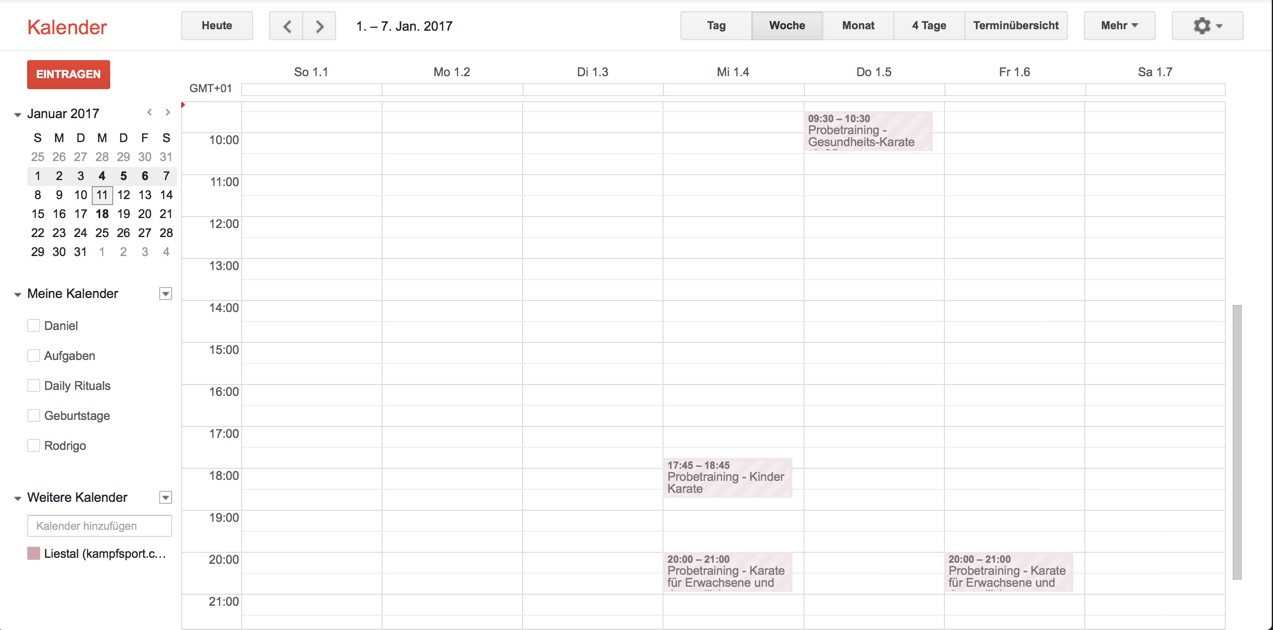
- The calendar is now imported and then shown under Other calendars.
Note: If new bookings don't appear in the calendar, Google most likely hasn't refreshed the calendar yet. Google only refreshes calendars added via URL every few hours. Unfortunately, there's no way to set a refresh interval in Google Calendar.
Subscribe with Calendar (macOS) or iCal (OS X)
To subscribe to a calendar with macOS or OS X:
- In the admin panel, click Settings and then Appointment Calendar in the submenu
- Click the Subscribe to calendar link. The calendar software should now open and show the New Calendar Subscription dialog:
If the dialog doesn't open automatically, switch to the Calendar app and choose File → New Calendar Subscription from the menu bar.
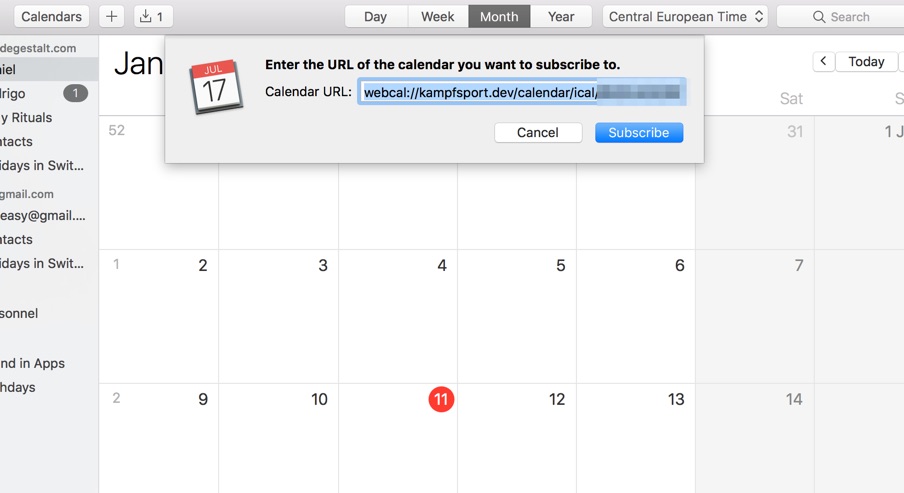
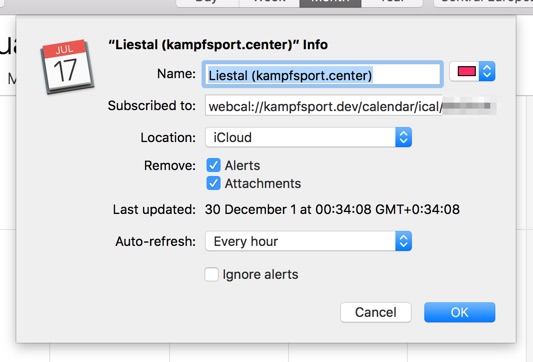
- Clicking Subscribe now opens the calendar's settings dialog.
If you choose iCloud as the location, the calendar is added to all your devices that are set up with your iCloud account. For the refresh interval, choose Every hour. New bookings will then appear in the calendar no later than one hour after they come in. Click OK to add the calendar.
keinaufwand for: Martial arts schools, Consulting and coaching, Yoga and Pilates, Dance schools, Gyms and fitness studios, Personal training, Swim schools, Music schools, Sports clubs, Massage and therapy practices, Dog training schools.
Enjoy the rest of your Wednesday!