Add or Edit Holidays and Absences
In this article
Basic steps
To add holidays:
- From the admin panel, click the My Business section and switch to the Locations or Staff section and click the location or staff member.
- Switch to the Holidays / Absences tab
- Click the red button with the plus sign in the top right and select Add holiday:
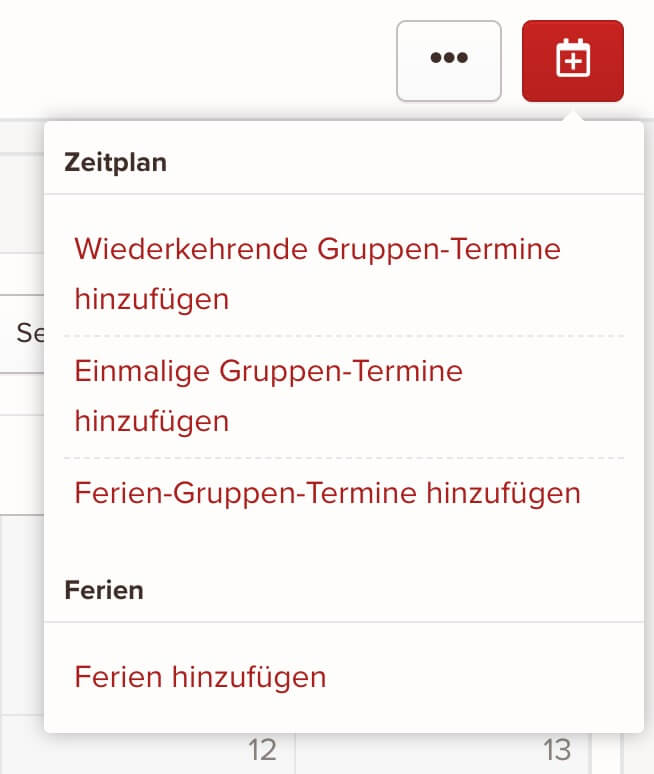
- Add the holiday/absence information
- Click Save once you're happy with the information you've entered
To edit holidays:
- From the admin panel, click the My Business section and switch to the Locations or Staff section and click the location or staff member.
- Switch to the Holidays / Absences tab
- Click the name of the holiday / absence
- Update the holiday/absence information
- Click Save once you're happy with the information you've entered
Holiday/absence information
Holidays and absences consist only of a name, a start date, and an end date, and are used to define exceptions to recurring group classes and working hours. Group classes and working hours that overlap with holidays and absences aren't available for appointment booking during that period.
Name
Enter the name of the holiday or absence (for example: summer holidays, Labor Day, doctor's appointment, etc.). This field is required.
Start and end date
Enter the start and end date of the holiday or absence. These fields are required.
keinaufwand for: Martial arts schools, Consulting and coaching, Yoga and Pilates, Dance schools, Gyms and fitness studios, Personal training, Swim schools, Music schools, Sports clubs, Massage and therapy practices, Dog training schools.
Enjoy the rest of your Wednesday!