Schedule Views
To make it easy to manage your appointment options, the admin panel offers four different schedule views.
In this article
- Annual schedule
- Weekly schedule
- Annual holiday schedule
- Calendar view
- Filter the view and switch location or staff member
Annual schedule

To open the annual schedule of a location or staff member:
- From the admin panel, click the My Business section and switch to the Locations or Staff section
- Click the location or staff member
- Switch to the Schedule tab
This is the annual schedule of all your recurring group classes and working hours for the selected year. One-time and holiday appointments aren't shown here (switch to the weekly or calendar view for those). The annual schedule shows whether a recurring appointment takes place during certain holidays or absences and during which term it's active.
By default, the annual schedule for the current year is shown. To change the year, use the arrow buttons of the year filter:

Weekly schedule

To open the weekly schedule of a location or staff member:
- From the admin panel, click the My Business section and switch to the Locations or Staff section
- Click the location or staff member
- Switch to the Schedule tab
- Select the week you want in the week filter:
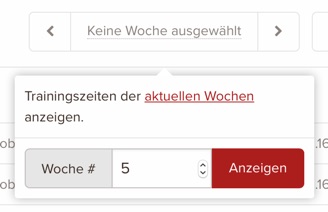
The weekly schedule shows the recurring, one-time, and holiday appointments of the selected week and is useful for checking appointments and working hours during holidays in detail.
Annual holiday schedule

To open the annual holiday schedule of a location, follow these steps:
- From the admin panel, click the My Business section and switch to the Locations or Staff section
- Click the location or staff member
- Switch to the Holidays tab of the location or staff member
This is the annual schedule of all holidays entered for the selected year.
By default, the annual schedule for the current year is shown. To change the year, use the arrow buttons of the year filter:
Calendar view

To open the calendar view of a location, follow these steps:
- From the admin panel, click the My Business section and switch to the Locations or Staff section
- Click the location or staff member
- Switch to the Calendar tab
The calendar view shows all recurring, one-time, and holiday appointments as well as holidays/absences for the selected month and is useful for checking group classes, holidays, and absences in detail.
By default, the current month of the current year is shown. To change the year or month, use the arrow buttons of the month or year filter:

Filter the view and switch location or staff member
The filters below the page title offer the relevant offers, locations, and time periods. Open the filter you want, select a value, and confirm with Apply. The arrows for the previous and next period remain directly accessible.
Next to the page title, you can switch the location or staff member. The selected schedule view and time period are kept. The link above the title takes you to the overview of the current location or staff member.
keinaufwand for: Martial arts schools, Consulting and coaching, Yoga and Pilates, Dance schools, Gyms and fitness studios, Personal training, Swim schools, Music schools, Sports clubs, Massage and therapy practices, Dog training schools.
Enjoy the rest of your Wednesday!